
Illustrator Basics: The First 20 Hours to Learning Vector Design
Illustrator Basics: The First 20 Hours to Learning Vector Design
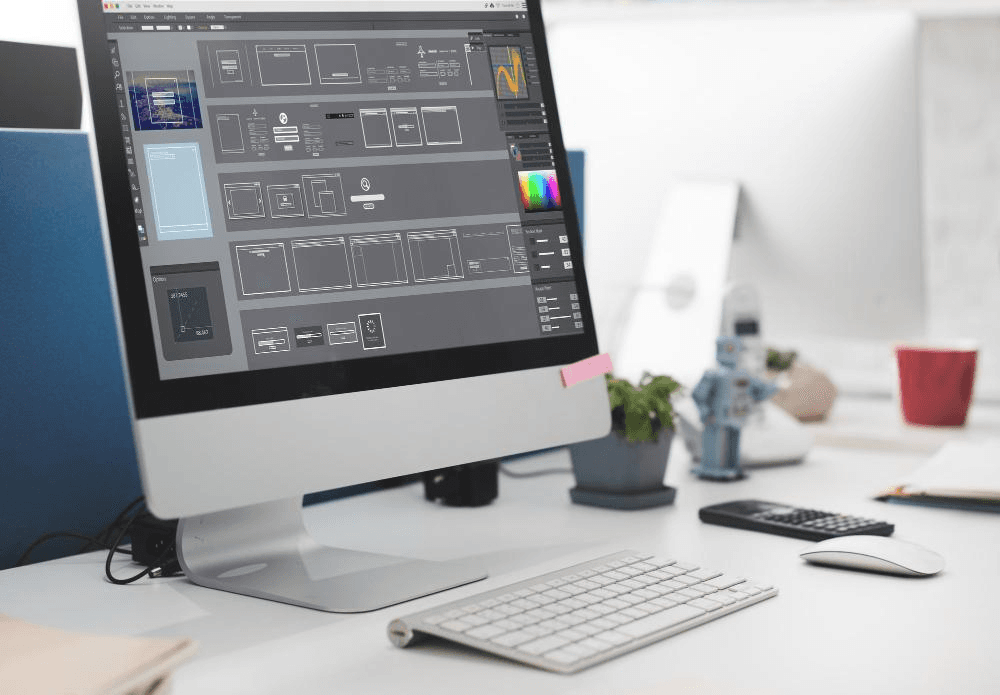
Understanding Illustrator basics is the perfect gateway for anyone looking to enter the world of professional vector design. If you are a beginner eager to learn skills in designing logos, illustrations, and infographics, mastering these fundamentals is an essential step. In general, learning Adobe Illustrator gives you the ability to transform your creative ideas into precise, scalable digital works, which is particularly important for those aiming to work freelance or develop their design skills in Saudi Arabia. In this article, we will explore the most important Illustrator basics you need to learn vector design step by step, along with practical tips for beginners, and highlight the top accredited course in the Kingdom at the Higher Saudi Skills Institute to help you quickly reach a professional level.
The Main Uses of Adobe Illustrator Program
Adobe Illustrator is one of the most popular vector graphic design programs, used to create precise digital graphics that can be scaled up or down without losing quality. Designers rely on this program to create:
- Logos
- Icons
- Posters
- Illustrations
- Infographics
It is also widely used in digital printing and advertising product design, making it an essential tool for anyone working in creative design or digital marketing.
Therefore, the program gives you the ability to turn your ideas into polished designs that can be used in any project, whether digital or print, making learning Illustrator basics a crucial step for any beginner in vector design.
Key Illustrator Basics Every Beginner Needs
Mastering Illustrator basics provides you with a strong foundation to develop your design skills faster and more effectively.
Understanding the essential tools, how to work with shapes, layers, text, and colors allows you to create professional work from the start. Below are some of the most important fundamentals:
Setting Up a New Project (Artboard) in Illustrator
The first step in any design is creating a new project and defining the workspace or Artboard.
This is the canvas on which you will draw, and you can choose its dimensions according to the type of project, whether it’s a logo, poster, or web interface.
Knowing how to add multiple Artboards within a project helps you work on several designs in the same file in an organized way. To add multiple Artboards in Illustrator:
- Open your project, then go to Window > Artboards to open the Artboards panel.
- Click the New Artboard icon at the bottom of the panel to create a new Artboard with the current settings, or drag manually to set a different size.
You can also use the Artboard Tool (Shift + O) from the toolbar to create new Artboards directly on the current canvas or adjust the size and position of each one easily.
Size and Units in Illustrator
Before starting your design, it is important to set the project size and measurement units according to your final goal, which is one of the key Illustrator basics you should know.
Correctly setting the size and units ensures design quality and makes it easier to manage elements within the project. To set the Artboard size and units, follow these steps:
- Open a new project from File > New.
- Choose Width and Height to define the project dimensions.
- Select the appropriate unit, such as Pixels for web, or centimeters/inches for print.
These settings can also be adjusted later from the Properties panel or Artboard Options if you need to modify the dimensions or units while working.
Importing Images and Graphics into Illustrator
Illustrator allows easy integration of images and graphics into your vector design, which is an essential part of Illustrator basics. To import an image into the program:
- Go to File > Place.
- Select the file from your device and click Place to add it to the Artboard.
After importing, you can move the image, resize it, or convert it into vector elements using tools like Image Trace if you want to turn raster images into editable vector graphics. This method also makes combining images with text and vector graphics very smooth and flexible.
Selection and Move Tools in Illustrator (Select, Direct Select, Move)
Selection and move tools are fundamental for handling any element within a project, making them among the most important Illustrator basics. Here’s a breakdown of these tools:
| Tool | Function |
| Select Tool | Allows you to select a whole element to move or resize it |
| Direct Select Tool | Lets you edit specific points and paths within an element, giving more flexibility for precise adjustments |
| Move Tool | Essential for moving elements accurately between different positions on the Artboard or between project layers |
Drawing and Editing Basic Shapes in Illustrator (Rectangle, Ellipse, Polygon)
The shape tools in Illustrator allow you to easily draw rectangles, circles, and polygons. To use them, select the desired shape from the toolbar and drag on the Artboard to draw it in the required size.
After drawing, you can adjust the shape dimensions, rotate it, or change its corners using the Transform and Direct Selection tools to customize the design according to your needs.
These basic shapes are among the most important Illustrator basics since they form the foundation of any vector design and can be combined to create more complex graphics.
Using Advanced Tools in Illustrator: Pen Tool and Curvature Tool
The Pen Tool is the most powerful for drawing precise paths and complex shapes, allowing control over every point and the adjustment of line curves as desired.
The Curvature Tool simplifies drawing smooth curves, especially for beginners, as it makes path adjustments easier and more flexible without needing to manipulate complex control points.
Grouping and Ungrouping Tools (Group, Ungroup, Compound Path)
These tools help you organize design elements, making them an essential part of Illustrator basics. The following table explains each tool and its main function:
| Tool | Function |
| Group | Allows you to combine multiple elements to move or edit them as a single unit |
| Ungroup | Separates grouped elements so you can edit each one individually |
| Compound Path | Useful for creating complex shapes from multiple elements, such as cutting parts of a shape or combining paths for a logo or advanced illustration |
Applying Gradients and Patterns in Illustrator (Gradients, Patterns)
Adding color gradients or patterns gives your design a professional visual depth, and mastering these is an important part of Illustrator basics for every beginner.
| Tool | Function |
| Gradient Tool | Can be used to apply a smooth color gradient between two or more colors, with control over angle and color transitions |
| Patterns | Allows filling shapes with repeated designs such as dots or lines, adding variety and creativity to vector designs in a professional and attractive way |
Working with Text and Fonts in Illustrator
Illustrator is not limited to graphics; it also allows you to add text and design written logos professionally. To insert text, use the Type Tool and click on the Artboard to write your text.
You can modify the font type, size, color, and alignment from the Character and Paragraph panels.
Text can also be converted into vector shapes using the Create Outlines option, giving you control over each letter individually to design logos or custom illustrations. This is one of the key Illustrator basics that every beginner should know.
Saving Projects in Multiple Formats in Illustrator (AI, EPS, SVG)
After finishing a design, it’s important to know how to save your project in different formats suitable for your intended use.
Knowing the correct formats ensures design quality and ease of use later in any project. The following table summarizes the main formats:
| Format | Function |
| AI | Original editable file within Illustrator |
| EPS | Suitable for high-quality printing |
| SVG | Used to embed graphics on websites or digital applications |
To save in your preferred format, go to File > Save As or Export > Export As, choose the desired format, and save.
Common Beginner Mistakes in Illustrator and How to Avoid Them
When starting with Illustrator, many beginners make common mistakes that slow progress and cause frustration. Knowing these mistakes and how to avoid them helps you learn faster and more effectively:
- Ignoring project size and units: Starting with improper dimensions may cause issues with printing or later use. Solution: Set the correct dimensions and units before starting work.
- Relying on raster images instead of vector graphics: Using low-quality images will ruin the design when enlarged. Solution: Use vector graphics or convert images to vector using tracing tools.
- Not using layers properly: Messy arrangement of elements makes editing difficult. Solution: Organize elements in separate layers and clearly name each layer.
- Neglecting selection and move tools: Not knowing the difference between Select and Direct Select makes detail editing hard. Solution: Practice each tool and understand its use before moving to advanced tools.
- Saving in only one format: Saving in a single format may prevent future editing or usage in different contexts. Solution: Learn to save your files in AI, EPS, and SVG as needed.
- Trying to learn all tools at once: Beginners often try every tool at once, which can be overwhelming. Solution: Focus on mastering Illustrator basics first, then gradually move to advanced tools.
The Best Illustrator and Vector Design Course for Beginners in Saudi Arabia
If you are a beginner and want to learn Illustrator basics in a structured and professional way, the Higher Saudi Skills Institute offers a comprehensive course designed specifically for beginners and those looking to develop their vector design skills.
The course starts by teaching the basic tools of the program step by step, then moves to practical applications that help you turn your ideas into real, impactful designs.
During this course, you will learn how to work efficiently with all Adobe Illustrator tools, design logos and brand identities, create infographics and charts, draw characters and illustrations, and prepare maps and line drawings with high precision.
The course also encourages developing your own creative style and applying it to real projects, preparing you for careers in advertising, marketing, and printing.
It is offered in person at the institute’s campus in Saudi Arabia, allowing direct interaction with expert instructors and immediate practical guidance.
If you are looking for an opportunity to gain professional vector design skills, the Adobe Illustrator for Beginners course at the Higher Saudi Skills Institute is the ideal choice to start your creative journey with confidence. Get in-person training from specialized instructors and start turning your creative ideas into impactful designs today. Enroll in available courses and begin your journey in the world of vector design.
FAQs
What does Adobe Illustrator do?
Illustrator is used to create vector designs such as logos, illustrations, icons, and infographics that can be scaled without losing quality.
What are the Illustrator tools?
They include selection and move tools, basic shape drawing, Pen Tool and Curvature Tool, text tools, gradients and patterns, and grouping/ungrouping tools.
How do I write in Illustrator?
Using the Type Tool, click on the Artboard to write text, then adjust the font, size, color, and alignment. Text can also be converted to vector shapes for custom logos.
Which is better, Canva or Illustrator?
Canva is suitable for beginners making simple designs quickly, while Illustrator is better for designers who want full control and professional vector design capabilities.
What is the difference between Photoshop and Illustrator?
Photoshop specializes in raster images like photo editing and digital photography, while Illustrator specializes in vector graphics like logos and illustrations that can be scaled without losing quality.
What is the best accredited course to learn Illustrator in Saudi Arabia?
The Adobe Illustrator for Beginners course at the Higher Saudi Skills Institute, offered in person, teaches the basic tools and practical applications step by step to become a professional vector designer.