
Illustrator Tools and Effects Editing: From Beginner to Professional
Illustrator Tools and Effects Editing: From Beginner to Professional
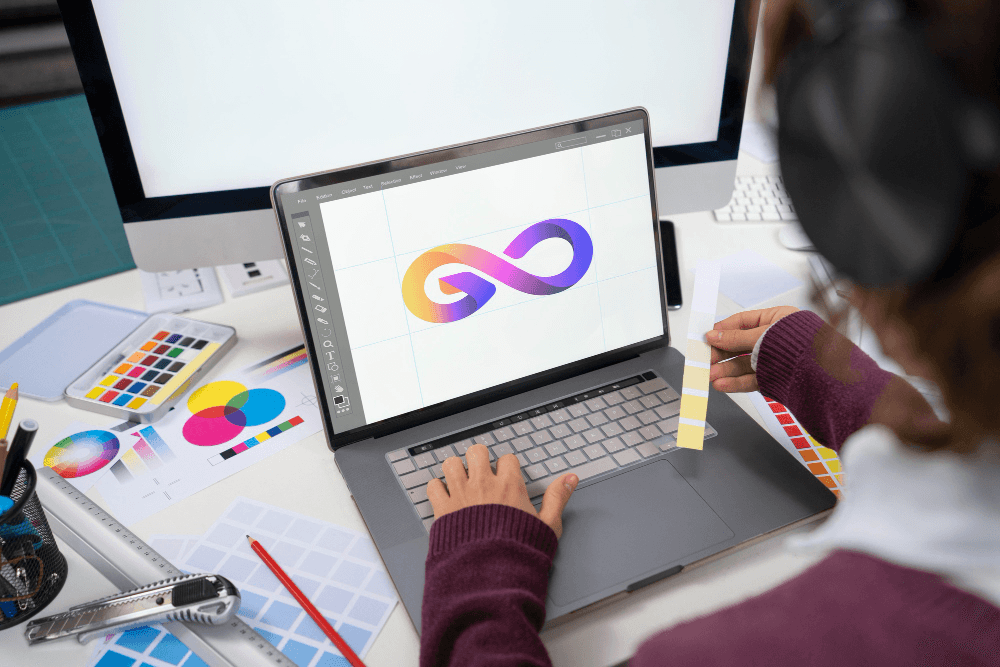
Illustrator tools are at the heart of any successful design. They give you the ability to transform creative ideas into precise and polished graphics. With these tools, both beginners and professionals can control shapes, colors, layers, and add effects that make designs lively and engaging. In this comprehensive guide, we will explore the most important Illustrator tools that every beginner or professional needs to master. We will also show you how to use them to apply professional effects and filters, ultimately achieving more refined and professional designs.
Key Illustrator Tools You Need to Master
Understanding Illustrator tools and how to use them correctly saves time, improves work quality, and allows you to implement your ideas with precision and finesse.
Below, we explain the most essential tools that every Illustrator learner should understand and master, along with their functions and usage methods:
Basic and Advanced Illustrator Tools: Brush Tool, Blob Brush, Eraser Tool
The basic and advanced drawing tools in Illustrator form the foundation of any refined design.
By using these Illustrator tools, you can draw precise shapes, create smooth lines and curves, and easily modify graphics to prepare them for coloring or adding effects.
Mastering these tools gives you complete control over every design element, making the creative process smoother and more professional. Here are the most important tools with their functions and usage:
| Tool | Main Function | How to Use |
| Brush Tool | Draw lines and shapes with variable thickness quickly | Select the tool, click and drag on the Artboard to draw paths. You can adjust brush size and color from the Properties panel. |
| Blob Brush Tool | Create connected shapes that can be filled directly | Draw shapes as if using a real brush; the resulting shapes convert into editable vector objects. |
| Eraser Tool | Remove parts of shapes or paths | Drag over the area you want to erase, and you can adjust the tool size for precise effect on specific parts. |
Illustrator Tools for Adjusting Smart Effects (Appearance Panel, Effects)
Illustrator tools for effects give designers the ability to add depth, motion, and professional touches to any element.
Using the Appearance Panel and smart Effects, you can adjust properties, colors, and shadows easily while keeping the original design editable. Here are the main Illustrator tools for managing effects:
| Tool | Main Function | How to Use |
| Appearance Panel | Manage element properties such as color, stroke, and transparency dynamically | Select the element, open the Appearance panel to add multiple properties that can be edited later without changing the original object. |
| Effects | Apply effects like shadows, glows, and warps to elements | Go to the Effect menu, select the desired effect, and adjust its properties anytime for precise appearance. |
Working with Paths in Illustrator: Expand, Outline Stroke
Mastering paths is fundamental for any professional vector design. Illustrator tools like Expand and Outline Stroke help convert paths into editable shapes, giving you full control over every design detail. Here’s how to use them:
| Tool | Main Function | How to Use |
| Expand | Convert paths, text, or effects into independent vector shapes | Select the element, then choose Object > Expand to turn it into separate editable objects. |
| Outline Stroke | Convert line strokes into vector shapes | Select the strokes, then choose Object > Path > Outline Stroke to make them editable as independent shapes. |
Using Illustrator Filters and Effects (Effects > Stylize, Warp)
Filters and effects in Illustrator bring life and visual diversity to your designs. They allow you to add distortions, shadows, and warps easily.
These Illustrator tools for effects make your designs more distinctive and attractive without creating every detail from scratch. Here’s an overview of the main effects and how to use them:
| Effect | Function | How to Use |
| Stylize | Add effects like shadows, glows, and edge highlights | Select the element, go to Effect > Stylize, choose the desired effect, and adjust properties as needed. |
| Warp | Distort and reshape objects flexibly | Select the element, go to Effect > Warp to apply curves or distortions, which can be modified anytime. |
Working with Channels and Opacity Masks in Illustrator
Understanding channels and opacity masks in Illustrator helps you control element colors and transparency with precision, giving your designs depth and a professional visual impact.
These Illustrator tools are essential for adding fine details and full control over how each element appears within the design. Here’s how to use them:
| Tool | Main Function | How to Use |
| Channels | Manage element colors and control their distribution | Open the Channels panel to select different channels and adjust their colors to achieve the desired balance. |
| Opacity Mask | Create transparent or semi-transparent areas within elements | Select the element, open the Transparency panel, then choose Make Opacity Mask to apply gradients and control the visibility of background elements. |
Icon Design and User Interface (UI) Design Using Illustrator
Combining shapes and creating compound graphics allows you to design complex forms easily by uniting, subtracting, or intersecting multiple elements.
This saves time and makes designs more precise and professional. Here’s how Illustrator tools help in icon and UI design:
| Task | Key Tools | How to Use |
| Icon Design | Pen Tool, Shape Tools | Use Pen and Shape tools to draw the basic shapes, then combine or adjust them as needed to create precise, consistent icons. |
| UI Design | Grid, Align, Pathfinder | Use the design grid and alignment tools to adjust spacing, and Pathfinder to merge or divide elements for a clean and professional layout. |
Compound Shapes and Pathfinder for Complex Graphics
Merging shapes and creating compound graphics lets designers produce intricate forms quickly and accurately by combining, subtracting, or intersecting multiple elements.
This method saves time and keeps designs organized and professional. These are essential Illustrator tools to understand and master:
| Tool | Main Function | How to Use |
| Compound Shape | Combine multiple shapes into one while keeping each part editable | Select the shapes, then choose Object > Compound Path > Make to create a compound shape that can be edited later. |
| Pathfinder | Unite, subtract, or intersect shapes to create complex graphics | Open the Pathfinder panel and select the appropriate operation (Unite, Minus Front, Intersect) to produce the final shape accurately. |
Converting Artwork to Symbols and Managing Them in Projects
Symbols make it easy to reuse graphic elements throughout a project, speeding up work and maintaining consistency.
By converting elements into symbols, you can update any instance of the symbol across the project with a single change. Here’s how to use this Illustrator tool effectively:
- Select the element you want to turn into a symbol for reuse.
- Choose Window > Symbols > New Symbol.
- You can then drag copies and use them anywhere in the project, with central editing capability.
Using Actions and Scripts to Speed Up Work in Illustrator
Actions and Scripts allow you to automate repetitive tasks, saving time and increasing productivity, especially for large projects or repeated elements. Here’s how these Illustrator tools work:
| Tool | Main Function | How to Use |
| Actions | Record a sequence of commands and replay them automatically | Open the Actions panel, record your steps, then play them on multiple elements to apply the same effects or operations quickly. |
| Scripts | Execute advanced commands or operations automatically | Use File > Scripts to run pre-made or custom scripts to automate complex tasks within your project. |
Practical Project: Designing a Poster from Scratch
The following project helps you apply your understanding of the most important Illustrator tools. You’ll learn how to turn a simple idea into a professional poster using Illustrator step by step:
- Define Concept and Content: Identify the poster’s core message, required text, images or illustrations, and suitable colors for the theme.
- Set Up the Project: Open a new project and choose the appropriate Artboard size (e.g., A3 or A4), and adjust units and resolution for print or digital display.
- Draw Basic Elements: Use basic drawing tools like Rectangle, Ellipse, Pen Tool to create backgrounds, shapes, and main symbols.
- Add Colors and Effects: Apply suitable colors, gradients, and smart effects (Appearance, Effects) to add life and depth to the design.
- Organize Layers: Place each element on a separate layer for easy editing and arranging.
- Add Text: Use text tools to insert titles, slogans, and essential information, selecting fonts and colors that match the poster’s identity.
- Final Touches: Add icons, extra graphics, or effects like shadows or warps to enhance the overall appearance and make the design attractive.
- Export Project: Save files in multiple formats for print or web (AI, PDF, PNG, SVG) to ensure high quality and easy sharing.
With this project, you’ll gain hands-on experience using both basic and advanced Illustrator tools, learning how to turn ideas into a complete, real-world design.
Professional Training Opportunity with Higher Saudi Skills Institute
If you want to move from theory to practical application, the Adobe Illustrator course for beginners at Higher Saudi Skills Institute is the perfect choice.
This course is specifically designed for beginners and enthusiasts entering the world of graphic design, teaching Illustrator fundamentals and tools step by step.
During the course, you’ll apply what you learn directly to practical projects like logo design, illustrations, and promotional posters, giving you real experience in using the program and enhancing your skills quickly and professionally.
In conclusion, mastering Illustrator tools gives you the ability to transform your creative ideas into precise and professional designs, whether you work on logos, interfaces, or illustrations. If you are looking for an effective and reliable way to develop your skills, courses at Higher Saudi Skills Institute are among the best options to learn Illustrator in Saudi Arabia. Register now and benefit from hands-on training on real projects to master the program and start your professional design journey.
FAQs
What are Illustrator tools?
Illustrator tools are a set of basic and advanced tools that allow you to draw shapes, edit paths, add effects, and create precise vector designs.
What are the most important Illustrator effects and how to use them?
Effects include shadows, glows, warps, and Stylize and Warp filters. They are applied via the Effects panel or Appearance Panel to adjust the look without affecting the original element.
How can I combine shapes and create compound graphics?
You can use Compound Shape and Pathfinder to unite, subtract, or intersect shapes to create precise and professional compound graphics.
What is the best way to learn Illustrator in Saudi Arabia?
The best way is to enroll in an accredited in-person course like the Higher Saudi Skills Institute Illustrator course, which offers both theoretical and practical training on real projects with specialized instructors.